How to Set Up Bits on Twitch in 7 Simple Steps
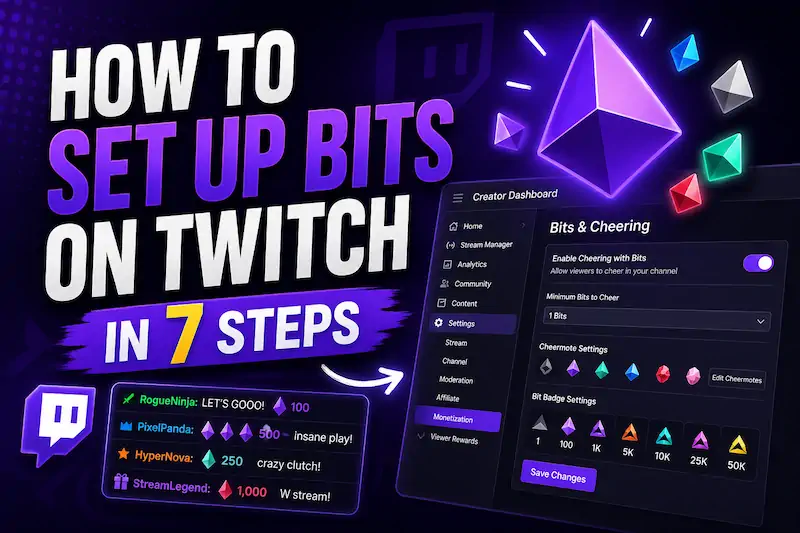
Twitch Bits are one of the easiest ways to turn hype into money without sending viewers off-site.
Someone likes a clutch, a roast, or a cursed fail, and boom, they Cheer in chat.
Setting up Bits is the easy part. What matters more is making sure Cheers show clearly, badges look branded, and Bit goals feel fun instead of forced.
How Do You Set Up Bits on Twitch?
To set up Bits on Twitch, you need to be a Twitch Affiliate or Partner. Cheering is usually enabled automatically for new Affiliates and Partners, but you should still check everything before telling viewers to use it.
Twitch places Bits & Cheering inside Creator Dashboard > Settings > Monetization > Bits & Cheering, and those settings are best managed on desktop.
Open the dashboard, check Bits are enabled, set minimum Cheer rules, customize badges, add alerts to OBS, then test everything before going live.
What Are Twitch Bits?
Twitch Bits are Twitch’s built-in virtual currency. Viewers buy Bits, then use them for cheering with Bits in a streamer’s chat. A Cheer is basically a highlighted chat message powered by Bits.
Cheers can appear with Cheermotes, cool animations, chat badges, and visible supporter moments.
But they are different from PayPal donations because they happen inside Twitch. They are also different from subs because they are one-off support moments, not monthly subscriptions.
How to Set Up Bits on Twitch in 7 Steps with Pictures
Do this on desktop if possible. Twitch says Bits & Cheering settings cannot be adjusted on mobile.
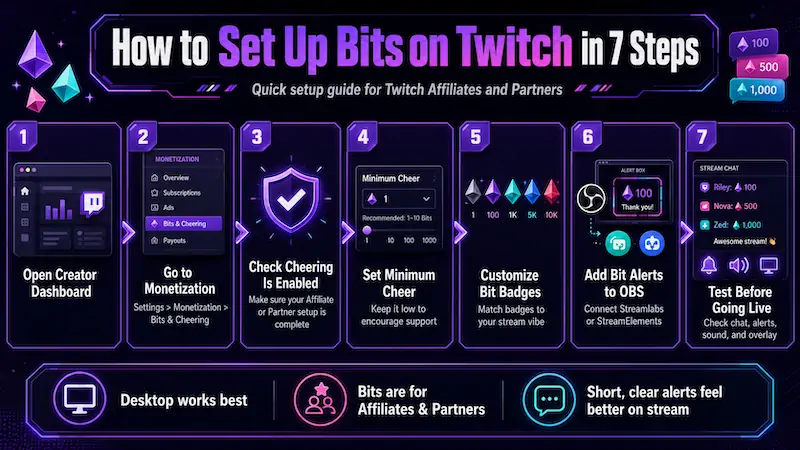
Step 1: Open Your Twitch Creator Dashboard
Start from the Twitch website on desktop.
-
Log into your Twitch account.
-
Click your profile icon in the top right.
-
Choose Creator Dashboard from the dropdown menu.
-
Wait for the dashboard sidebar to load fully.
Step 2: Go to Monetization Settings
Now you need the monetization area. This is where Twitch keeps Bits, subs, ads, and related revenue tools.
-
In Creator Dashboard, look at the left sidebar.
-
Click Settings if the menu is collapsed.
-
Open Monetization.
-
Click Bits & Cheering.
-
If you cannot see it, check your Affiliate or Partner onboarding.
Monetization section lets you configure the minimum Bits to Cheer, pinned Cheers, Bit tier badges, and Cheermote settings.
Step 3: Check That Cheering Is Enabled
New Twitch Affiliates and Partners normally get bits enabled automatically. Still, do not assume it works just because your Affiliate email arrived.
Open the Bits & Cheering page and check if Cheering is active. If the section is missing, your Twitch account may not be fully ready yet. This usually means one of three things:
-
You are not Affiliate or Partner
-
Onboarding is incomplete
-
The dashboard needs time to update
Also, check your payout setup. If your tax forms, payout details, or agreement steps are not done, monetization features can stay locked.
Step 4: Set Your Minimum Cheer Amount
The minimum Cheer amount controls the smallest number of Twitch Bits a viewer can use in your channel.
-
A low minimum, like 1 or 10 Bits, lets more viewers join the moment. That is good for small streamers because it makes support feel easy.
-
A higher minimum, like 50 or 100 Bits, can reduce spam and make Cheers feel more important.
For a new Affiliate, keep the barrier low at first. You want viewers testing Bits, not staring at your settings and backing out.
You can also set a minimum Bit emote amount. For example, if the minimum Bit emote is 50, viewers cannot Cheer with smaller individual Bit emotes in your channel.
Step 5: Customize Bit Badges
Bit badges reward viewers who Cheer over time. They show beside names in chat, which turns support into visible status.
That sounds small, but Twitch chat loves status. People like being seen.
Affiliates and Partners can replace Bit badges with custom designs, starting from the 1 Bit and 100 Bit reward tiers. Emote reward slots start later, from the 1,000 Bit reward tier and beyond.
Match your custom Bit badges to your stream vibe:
-
Cozy stream: mugs, stars, flowers, tiny animals
-
Horror stream: skulls, candles, cursed eyes
-
Competitive stream: ranks, medals, weapons
-
VTuber stream: mascot icons, lore symbols, face emotes
-
Chaos stream: bombs, goblins, warning signs
Step 6: Add Bit Alerts to Your Stream Overlay
Enabling Bits inside Twitch is only half the job. Viewers should also be able to see their Cheer hit the stream.
Use Streamlabs, StreamElements, or another alert tool. Connect it to Twitch, then add the alert box as a browser source in OBS.
Here’s how:
-
Open your alert tool.
-
Connect your Twitch account.
-
Enable Cheer or Bits alerts.
-
Copy the alert box browser source URL.
-
Open OBS.
-
Add a Browser Source.
-
Paste the URL.
-
Place the alert where viewers can see it.
Keep alerts short and clear. A 100 Bit Cheer does not need a 20-second dubstep explosion. Use fun sounds, clean text, and maybe custom animated emotes if they fit your brand.
Step 7: Test Bits Before Promoting Them
Do not announce Bits to viewers before testing. That is how you get the classic “wait, did it work?” moment live on stream.
A checklist:
-
Test the alert inside your alert tool.
-
Check that the Cheer appears in chat.
-
Make sure OBS audio is not muted.
-
Check that alert sounds are not too loud.
-
Confirm badges and messages show correctly.
-
Make sure alerts are not hidden behind another overlay layer.
-
Record a private test or do a short test stream.
-
Check your alert timing, text size, and volume.
If Cheers show in Twitch chat but not OBS, Bits are not the problem. Your alert tool or browser source is the problem.
How Viewers Use Bits to Cheer
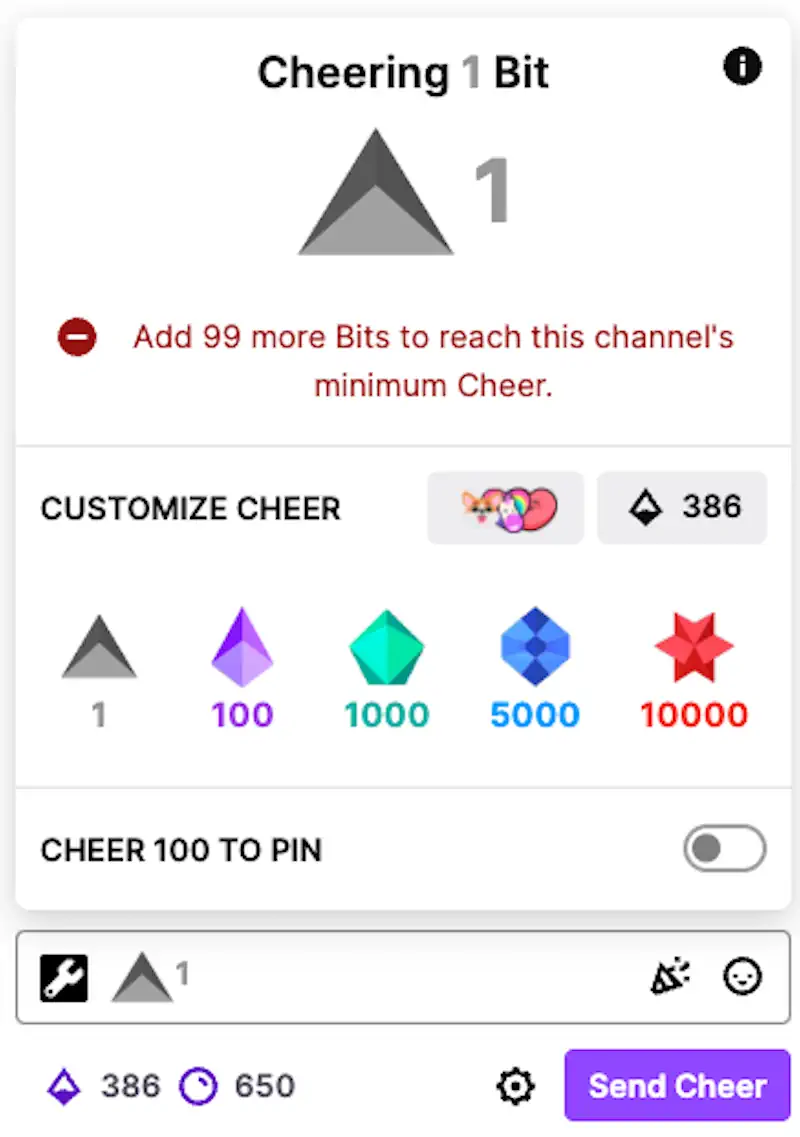
Viewers use the Bits icon in the chat window. They pick a Cheermote or Bit amount, add a message, then send the Cheer.
Depending on the amount, their message can show animated Cheermotes, badges, or other effects.
This matters because streamers should understand the viewer side, too. If Cheering feels confusing, viewers will just skip it.
Best Bit Settings for Small Streamers
| Setting | Beginner Recommendation | Why It Matters |
|---|---|---|
| Minimum Cheer | Keep it low, like 1 to 10 Bits | More viewers can participate without feeling pressured |
| Alerts | Short, visible, and readable | Support feels rewarding without killing the stream pace |
| Bit badges | Brand them early | Supporters get status in chat, which helps repeat Cheers |
| Sound effects | Fun, but not painful | Adds energy without making viewers mute the stream |
| Cheer goals | Use small goals | 500 or 1,000 Bits feels more reachable than 50,000 |
| Chat callouts | Thank viewers naturally | Builds Twitch community without sounding like a telethon |
How to Encourage Bits Without Begging
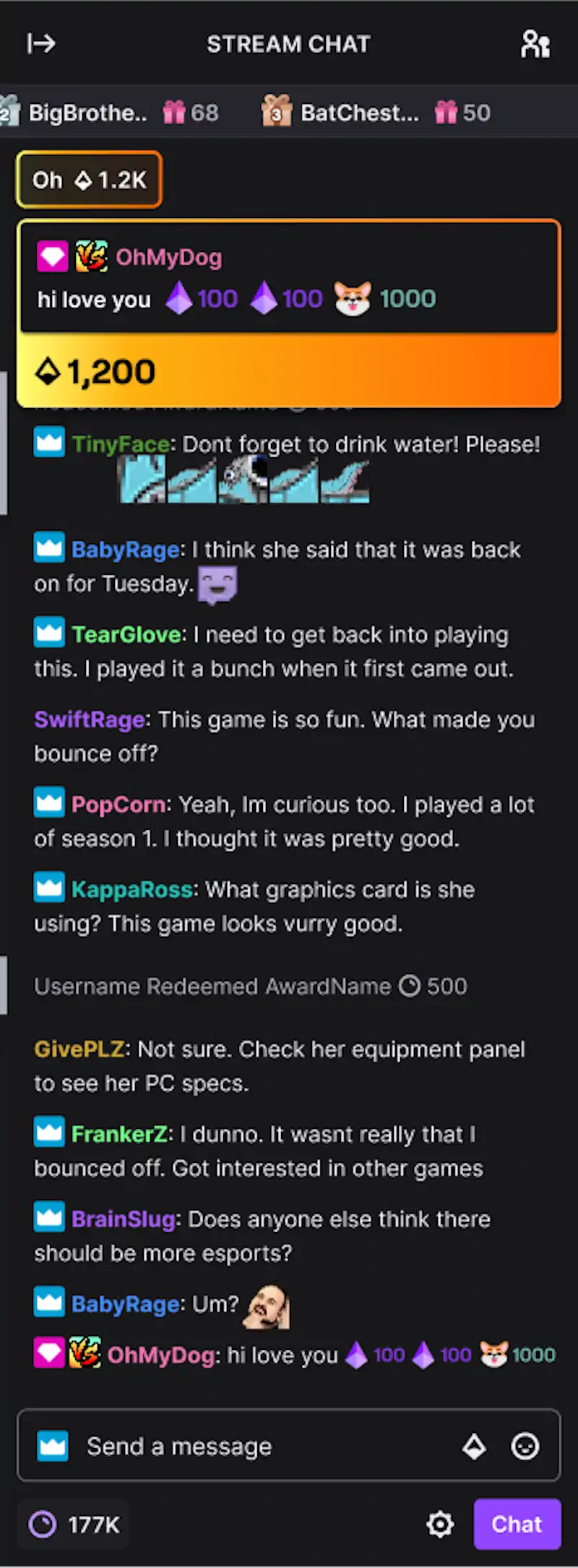
Bits work best when they are tied to fun. If you only say “please Cheer,” chat can smell the desperation through the screen.
Use this instead:
-
Tie Bits to funny stream moments.
-
Use Bit goals for small challenges.
-
Let Bits trigger sound effects, voice effects, or silly actions.
-
Keep rewards quick, so they do not derail the stream.
-
Thank viewers without stopping everything for five minutes.
-
Avoid guilt-tripping your audience.
-
Do not mention money every 10 seconds.
Examples that work:
-
100 Bits: Choose my next weapon.
-
250 Bits: Terrible voice for one round.
-
500 Bits: Chat picks the next challenge.
-
1,000 Bits: Horror game jump-scare roulette.
Make Bits part of the content. Do not make them the whole content.
Common Twitch Bits Setup Problems
Most Bits problems come from eligibility, onboarding, or OBS. Start there before blaming Twitch magic.
| Problem | Likely Cause | What to Check |
|---|---|---|
| Bits not showing | Not Affiliate or Partner yet | Check monetization eligibility and onboarding |
| Bits settings missing | Affiliate or Partner setup incomplete | Finish tax, payout, and agreement steps |
| Cheers work but alerts do not | OBS or alert tool issue | Check browser source, alert URL, and event settings |
| Alert sound not playing | Audio source muted | Check OBS audio mixer and alert volume |
| Bit badge not updating | Dashboard delay or cache | Refresh dashboard and check badge settings |
| Viewers cannot Cheer | Payment, region, or account issue | Have them check Twitch payment settings |
| Alerts are too loud | Bad alert setup | Lower alert volume and test before stream |
| Cheer message appears late | Twitch or browser delay | Refresh, restart OBS, and retest |
Bits vs Donations vs Subs: What Should Small Streamers Focus On?
For new Affiliates, Bits are useful because they happen inside Twitch and create public chat moments.
Still, they should not be your only plan. The real goal is building a stream people return to.
| Monetization Type | Best For | Weakness |
|---|---|---|
| Bits | Quick support moments during stream | Requires Affiliate or Partner |
| Subs | Recurring community support | Harder without loyal viewers |
| Donations | Direct support outside Twitch | Less native and can feel more private |
| Sponsorships | Bigger income potential | Usually needs audience trust |
| Affiliate links | Niche product recommendations | Needs a targeted audience |
Bits have clear monetary value for creators. One common benchmark is 1 Bit equals 1 cent to the streamer, so 100 Bits equals $1.
Use Bits for energy. Use subs for loyalty. Use donations for direct support. Use content to make all of them possible.
Where ViewBotter Fits In
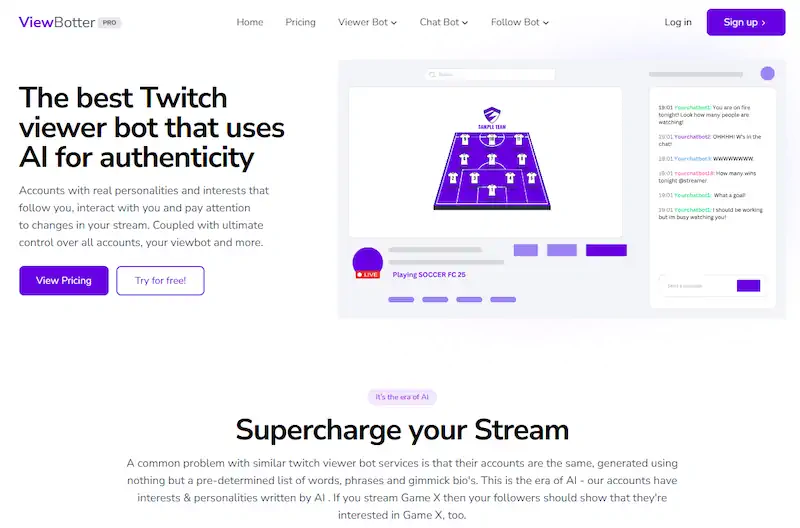
Bits are great, but they only fire when people are actually watching and chatting. A technically monetized channel that still feels empty is a visibility problem, not a settings problem.
That’s where we, at ViewBotter, can help. We’re an all-in-one Twitch growth platform built to get your channel off the ground while you focus on the content side. Here’s what we offer:
-
Twitch Viewer Bot: Keeps your concurrent viewer count alive so your stream looks worth clicking
-
Twitch Chat Bot: AI-generated accounts with real personalities that react to your stream in real time
-
Twitch Follow Bot: Builds your follower count so your channel looks established from the start
ViewBotter handles the cold start. You handle the content that makes people stick around. Use it alongside the real stuff… better stream timing, stronger titles, smarter chat prompts, and consistent clips.
Start your free trial or view pricing to find a plan that fits.
FAQ
How do I set up Bits on Twitch?
You need to be a Twitch Affiliate or Partner. Go to Creator Dashboard, open Settings, then Monetization, then Bits & Cheering. Cheering is usually enabled for new Affiliates and Partners, but you should still review your settings before going live.
Why can’t I enable Bits on Twitch?
The most common reason is that your channel is not Affiliate or Partner yet. If you recently qualified, finish onboarding first. Your tax forms, payout setup, and agreement steps may need to be complete before Bits appear.
Are Twitch Bits the same as donations?
Not exactly. Twitch Bits are built into Twitch chat. Donations usually happen through outside tools like PayPal, Streamlabs, or other tipping platforms. Bits feel more native because they trigger Cheers, badges, and chat effects.
Do I need Twitch Affiliate to get Bits?
Yes, Bits and Cheering are monetization features for Affiliates and Partners. If you are not Affiliate yet, focus on followers, average viewers, stream consistency, and chat activity first.
How do viewers Cheer with Bits?
Viewers can click the Bits icon in chat, choose a Bit amount, and send a Cheer message. They can also type “cheer” plus the amount, like “cheer100”, inside the chat box.
Can I customize Twitch Bit badges?
Yes. Affiliates and Partners can replace Bit badges with their own custom designs and names. Custom badge rewards start at the 1 Bit and 100 Bit tiers, while emote reward slots begin from 1,000 Bits and beyond.
How do I make Bits show up on OBS?
Bits can work on Twitch even if OBS shows nothing. Use Streamlabs, StreamElements, or another alert tool. Connect Twitch, copy your alert box URL, add it as a browser source in OBS, then test before going live.
Should small streamers ask for Bits?
You can mention Bits, but do not beg. Tie Bits to fun rewards, jokes, challenges, sound effects, or game choices. Viewers support more often when the Cheer feels like part of the stream, not a guilt trip.